








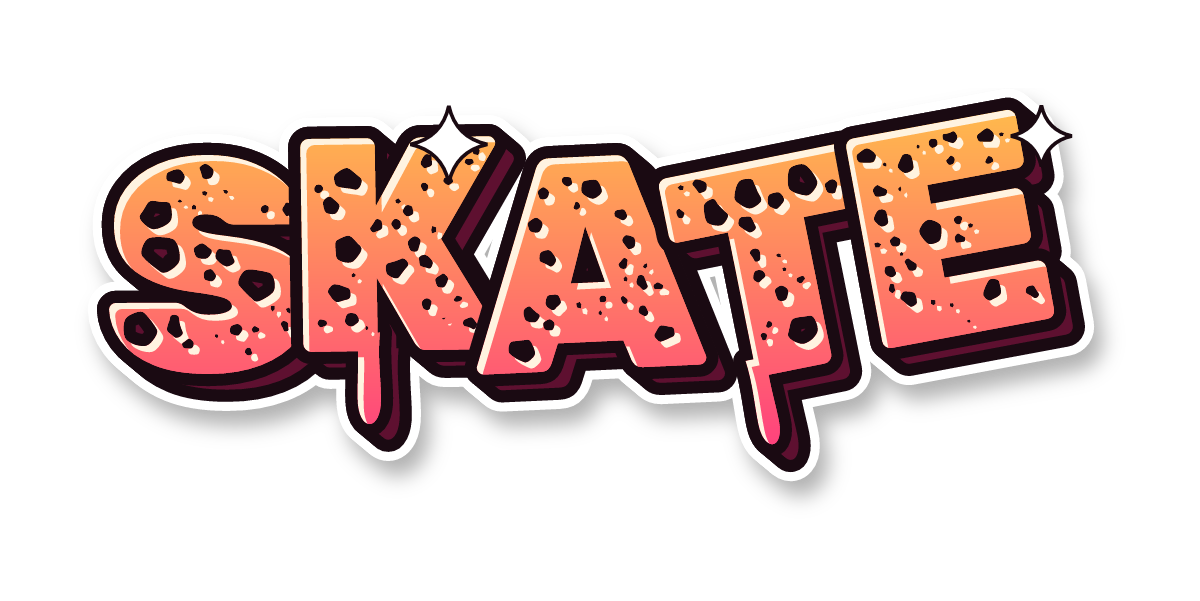
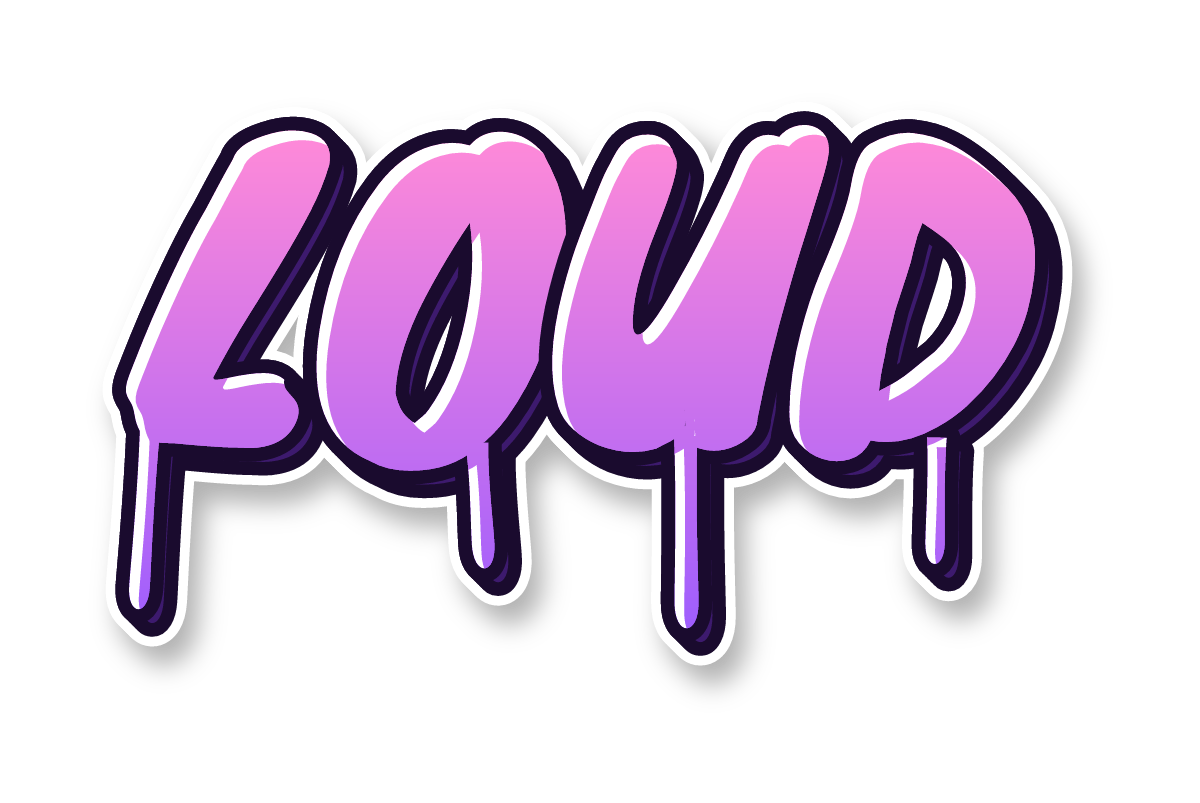



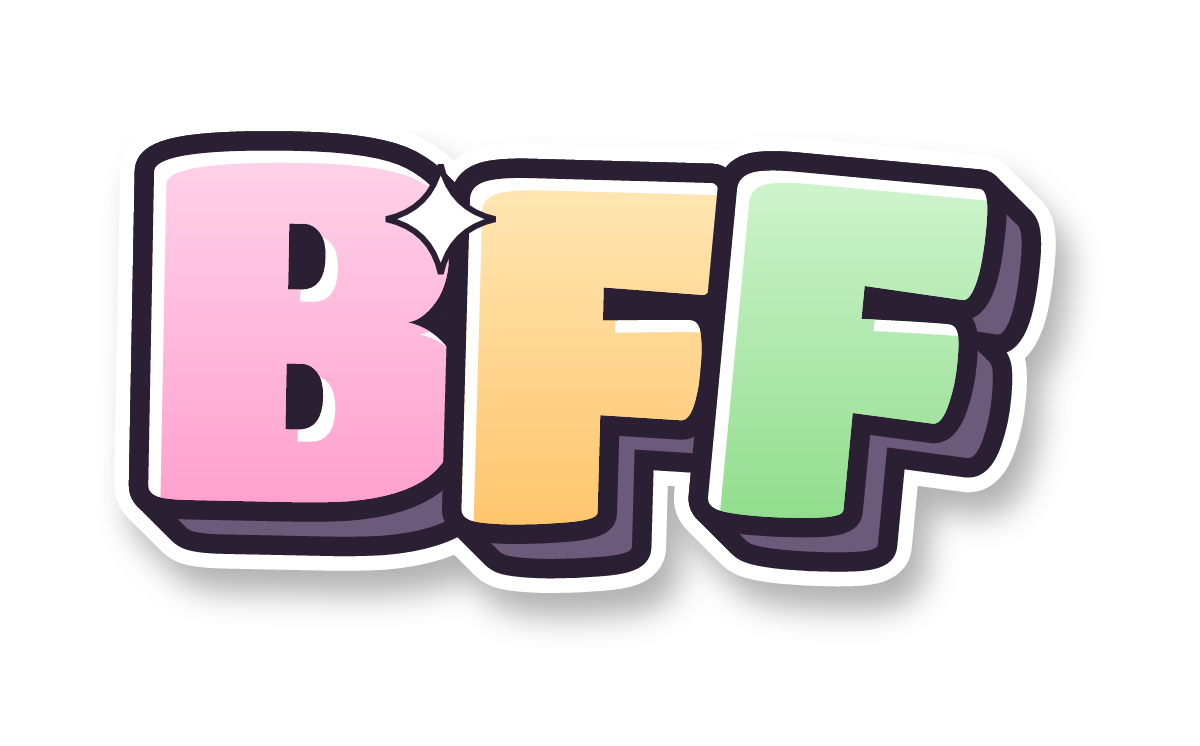
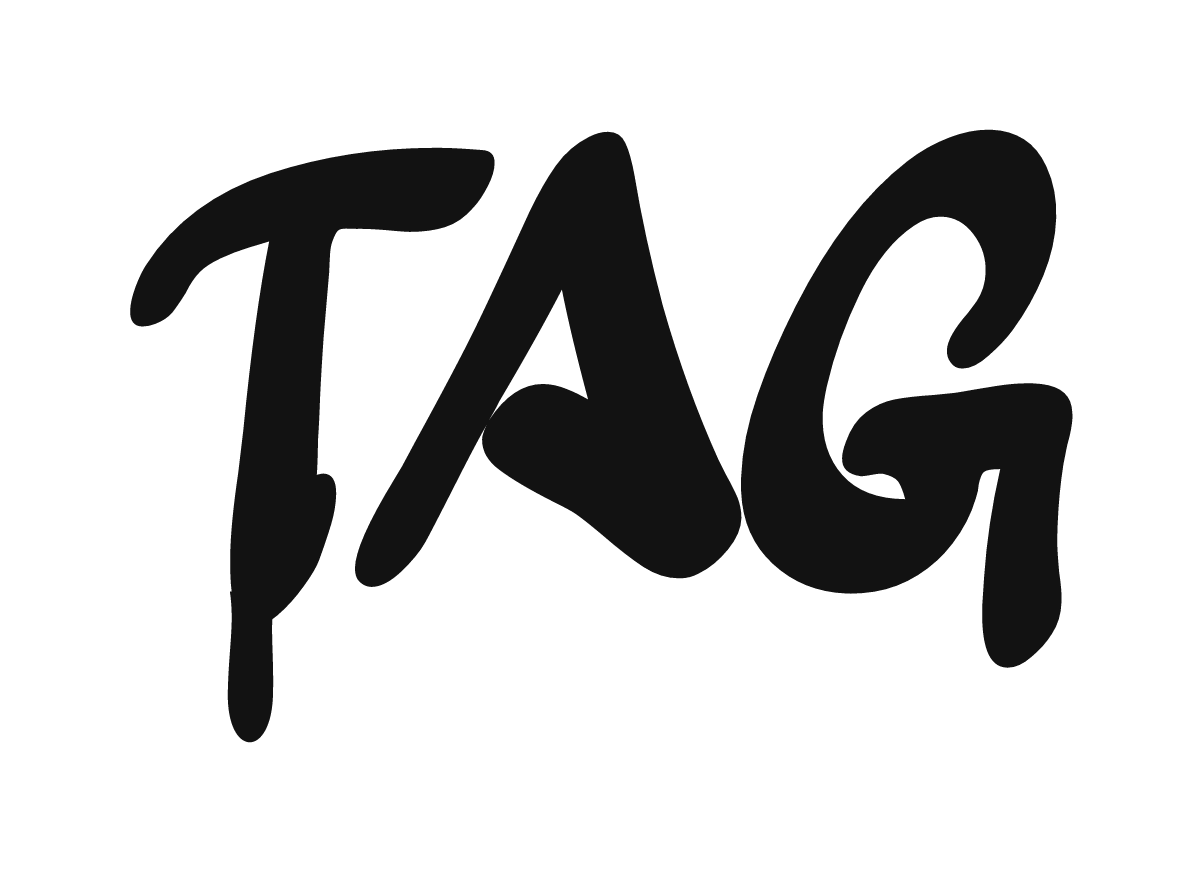
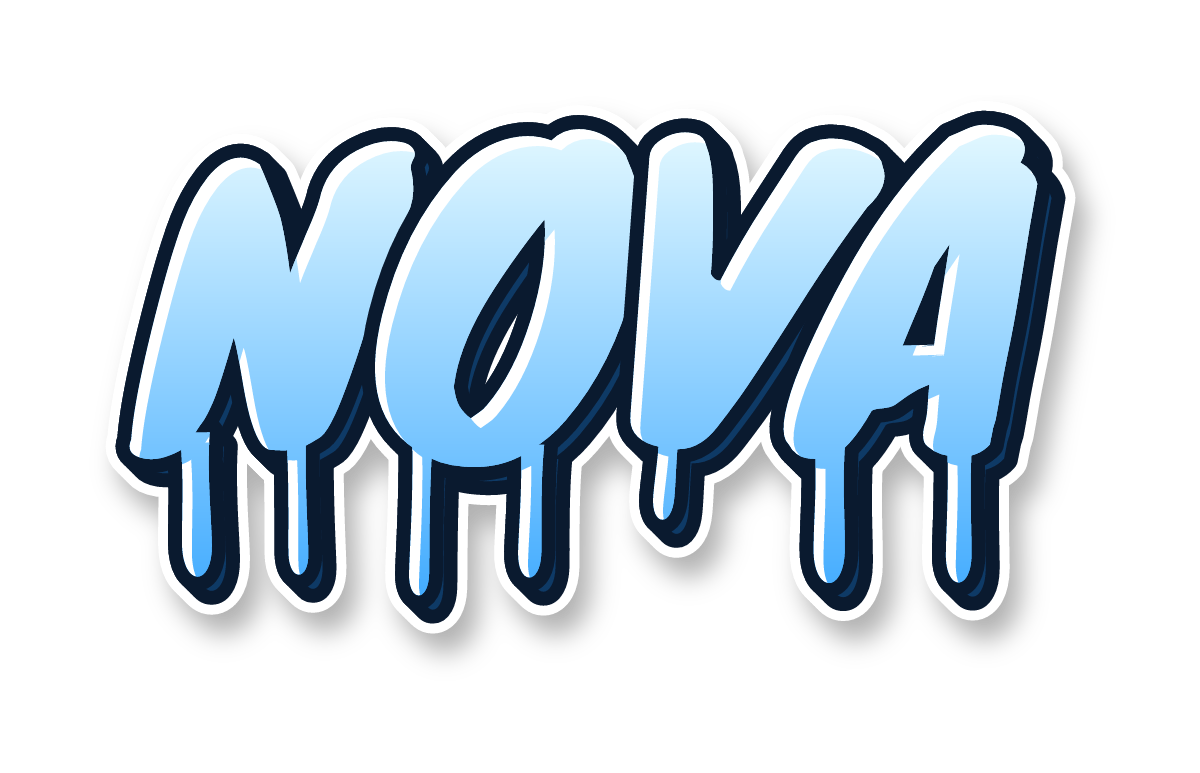
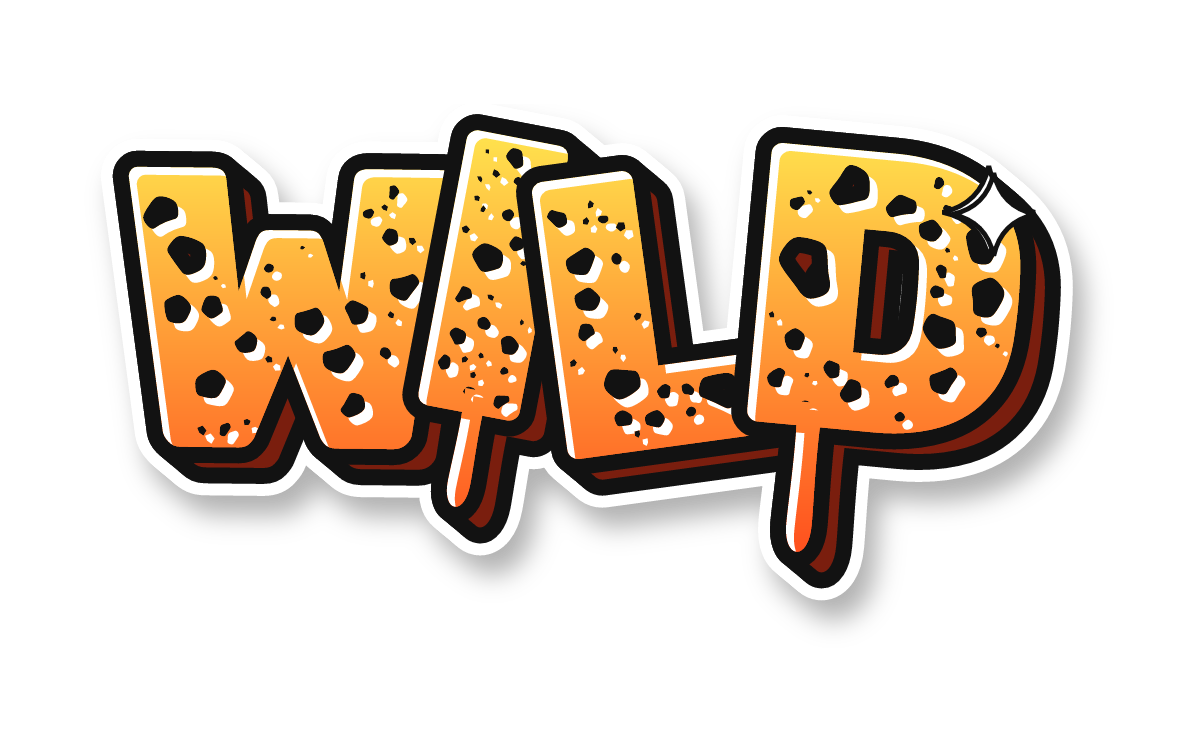

How do you use a transparent graffiti PNG?
Drop the PNG on top of any photo, video or slide and only the letters show, with no white box around them. That is the whole point of transparent graffiti: it sits on a brick photo, a gradient or a video frame as if it was painted there. Here is how it works in the apps people use most.
- Canva: Uploads, then Upload files, then drag the PNG onto your design. Resize from a corner so it keeps its shape.
- Photoshop: File, then Place Embedded. The PNG comes in as its own layer; add a drop shadow or set the blend mode to Multiply on a wall photo so the texture shows through.
- CapCut: Overlay, then Add overlay, then pick the PNG from your photos. Animate it with an in-animation or keyframes for an intro title.
- Google Slides: Insert, then Image, then Upload from computer. Good for a class presentation title or a poster slide.
- Stickers: the PNG works in sticker maker apps, or print it on sticker paper. The graffiti stickers page has a ready-made printable sheet.
- Thumbnails: put a word like BOOM or OMG over a YouTube thumbnail. Make it big: thumbnails are viewed small.
Common mistake: saving your finished design as JPG. JPG has no transparency, so the graffiti text PNG gets a white or black box behind it. Export as PNG if you need to layer the result again.
How do you make your own transparent graffiti PNG?
Open the graffiti generator, type your word or name, pick a style and colors, then set the Scene tab to None and the download size to Original HD (2000 px wide) and press Download PNG. The checkerboard behind the preview shows which parts will be transparent.
- Type your text. Short words of 3 to 6 letters give the biggest letters.
- Choose a style. Compare them on the graffiti styles page, or start from an "Edit" link above.
- Pick a color scheme in the Color tab, or Custom for your own fill and outline.
- In Scene, choose None. Any wall scene adds a background, which stops the PNG being transparent.
- Pick Original HD, or Sticker 512 × 512 for chat stickers, and download.
Names work the same way; the graffiti name generator shows name examples in every style. For single letters, every page under graffiti letters A–Z has the letter ready to download.
When should you use SVG instead of PNG?
Use SVG when the artwork has to get bigger than the PNG, or when a machine cuts it. A PNG is made of pixels, so a 1200 px file starts to look soft on a large poster. An SVG is made of shapes and stays sharp at any size.
The generator's SVG button exports outlined paths, so the file needs no fonts and opens the same in Illustrator, Inkscape, Affinity Designer, Cricut Design Space and Silhouette Studio. Pick SVG for vinyl decals, laser cutting, embroidery files and big prints; pick PNG for phones, social posts, video and slides.
Can you use these graffiti PNGs commercially?
The PNGs are free for personal use: school projects, social posts, videos on your own channel, gifts and party decorations. Selling products with them, such as T-shirts, stickers or prints, or using them in a logo or an ad, is commercial use and needs Graffiti Letters Pro (launching soon).
You can't resell or re-share the files themselves as clipart, a stock pack or a font. The full terms are on the image license page. Pro is not on sale yet; until it launches, ask about commercial use through the contact page.